
Change the studio backdrop
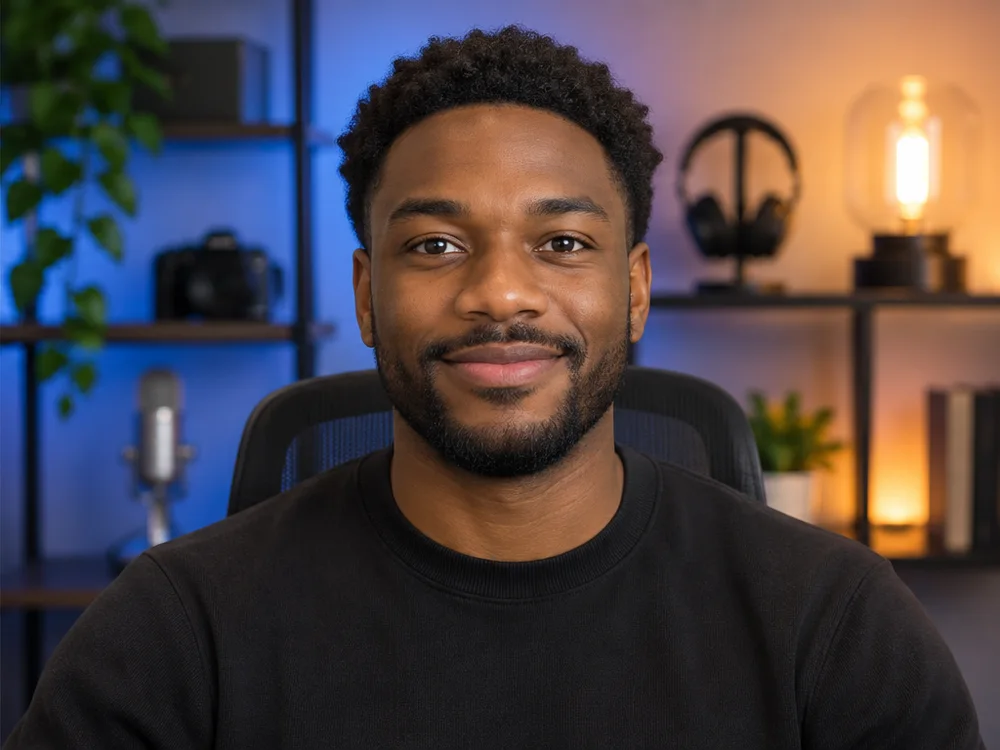
See how a plain wall looks with blue and amber studio lighting behind the host.
Prompt: “Replace the wall with a softly blurred creator studio lit in blue and amber. Keep the host and his shirt unchanged.”
Create a portrait for live face swap, try a new outfit in a photo, or update your stream visuals. Start with a prompt or upload up to four reference photos.
 Original
 Edited
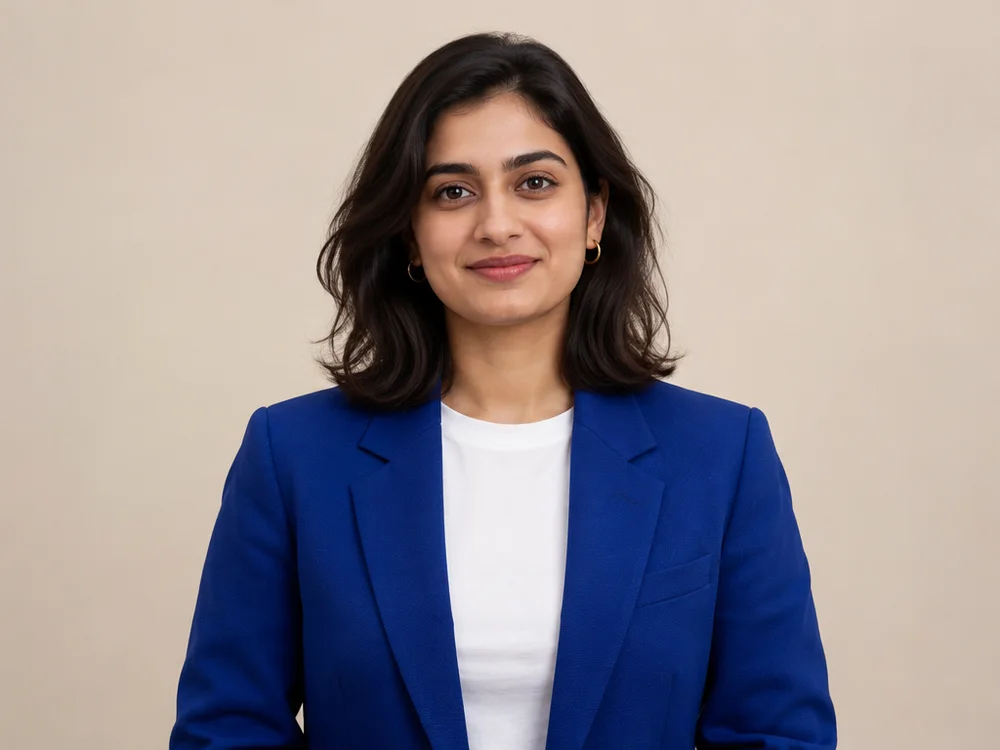
Replace the background with a plain light-gray studio backdrop. Soften the face lighting and keep her features and expression.
Image editing examples
Drag the sliders to compare each edit. Use the prompts as a starting point for your own photos.
See how a plain wall looks with blue and amber studio lighting behind the host.
Prompt: “Replace the wall with a softly blurred creator studio lit in blue and amber. Keep the host and his shirt unchanged.”
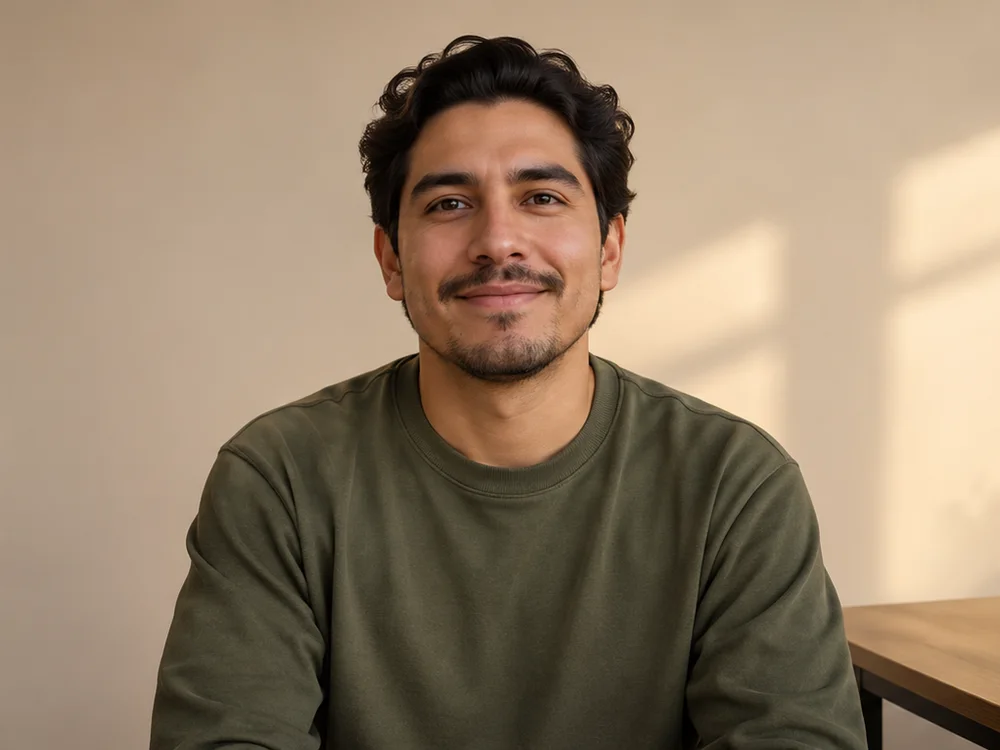
See how a blue blazer looks on camera before choosing what to wear on stream.
Prompt: “Replace the gray sweatshirt with a cobalt blue blazer over a white T-shirt. Keep the face, hair, pose, and background.”
Clean up a promo photo by removing the light stand, cable, and coffee cup from the frame.
Prompt: “Remove the light stand and cable on the left and the coffee cup on the right. Keep the person, table, and sunlight.”

Reuse your thumbnail when a scheduled stream goes live.
Prompt: “Change “SOON” to “LIVE” in the same white lettering. Keep the portrait and layout.”
How to use
Works in any desktop or mobile browser and charges per image.
What it's good for
Use it for everyday photo fixes, or to get portraits and outfit shots ready before a live face swap or virtual try-on session.
Prepare a clear, front-facing reference for live face swap. Use even light and keep hair and accessories away from the eyes.
“Replace the background with a plain light-gray studio backdrop and even out the light on the face. Keep the person's features unchanged.”
Clear tourists, photobombers, stray cords, or objects blocking the shot so the model fills in the background naturally around your subject.
“Remove the people in the background and the cup on the table. Keep the main person untouched.”
Don't want to use your real face or someone else's photo on stream? Generate an original front-facing portrait from text, or turn a selfie into an anime or illustrated look.
“Front-facing portrait of a woman in her late 20s looking at the camera, soft even light, no hair over the eyes, plain gray background.”
Try a different jacket or color on a photo of yourself, or strip hangers, tags, and store clutter off a clothing photo before loading it into live virtual try-on.
“Change the person's jacket to a navy blazer. Keep the face, hair, pose, and background as they are.”
Put the replacement text in quotes and describe the lettering or layout to keep.
“Change the thumbnail headline from “SOON” to “LIVE” and keep the same bold white lettering.”
Upload two to four images and refer to them as image 1, image 2, and so on. Put the clothes from image 2 onto the person in image 1, or place an object into another scene.
“Put the dark green leather jacket from image 2 on the person in image 1. Keep image 1's face, pose, and lighting.”
Models & pricing
Use up to 1,000 characters and up to four JPG, PNG, or WebP references of 20 MB each. Download the result as a JPEG.
Everyday edits & live references
Start at 1K for 60 credits when changing a background, removing clutter, or preparing a portrait reference.
Quoted text & strict instructions
Best when exact wording on a sign or specific placement matters. Maxes out at 2K (2048px long edge) and caps wide images at a 3:1 aspect ratio.
Multi-image merges & 2K/4K
Handles 2–4 image blends and tricky lighting best. 1K and 2K both cost 210 credits, so pick 2K by default, or 4K when you need a large file.
Prompt tips
These models redraw the whole image each time rather than editing a masked layer. Telling the model what to leave alone matters as much as telling it what to change.
Make a good face swap photo
Front-facing portrait of a man in his mid-20s looking at the camera with a slight smile, even front lighting, no glasses, hair clear of the eyes, plain light-gray background.
Put the second outfit on the first person
Dress the person in image 1 in the black leather jacket and white t-shirt from image 2. Keep image 1's face, hair, pose, and background unchanged.
Clean up this promo photo
Remove the light stand and cable on the left and the cup on the right. Keep the person, side table, and sunlight.
Add a line like “keep the face, pose, and lighting unchanged” so the model doesn't quietly reshape features while editing the rest of the shot.
If you plan to use the image in live face swap, ask for one person facing the camera, even light from the front, and nothing covering the eyes.
Changing the outfit, background, and lighting all at once often softens small details. Run one change, download the JPEG, then upload it for the next step.
Put the main photo first, then add references such as outfits and props. Use the image numbers to make clear what to take from each photo.
FAQ
Yes. Download the JPEG, then upload a clear front-facing portrait for live face swap or a clear garment photo for Virtual Try-On. Check the studio's upload limit before choosing a larger output size.
The live face swap and try-on pages work on your webcam feed in real time and charge per second. This page generates and edits still photos and charges per image. It's useful when you want a still picture, or when you need to create or clean up a reference photo before going live.
Yes, up to four JPG, PNG, or WebP images per run. Refer to them in upload order as image 1 through image 4. For example, ask to put the jacket from image 2 on the person in image 1. Use images you have permission to edit.
Start with Nano Banana 2.1 at 1K for everyday edits (60 credits). Try GPT Image 2.6 for lettering and Nano Banana Pro for multi-image edits. Pro costs 210 credits at either 1K or 2K.
Yes. Your account balance works across live face swap, Virtual Try-On, the Mac app, and AI Image Edit. Registration gift credits can be used for one edit per account, and any further edits use your plan or credit packs.
Because the model redraws the whole frame, asking for four or five changes at once can cause untouched details to drift. Stick to one or two changes per run and tell it to keep the face, pose, and lighting unchanged.
Yes, failed and safety-rejected runs are refunded automatically, and the refund shows up in your credit history. Note that once a provider accepts a job, it still counts as your one registration-credit trial even after the credits are returned.
Yes. Your uploads and generated JPEGs stay in private storage and are never shared publicly. Only the model provider receives them to process your request, and preview and download links expire automatically.
Prepare a reference portrait, preview an outfit, or update your thumbnail. The editor shows the credit cost before you generate.


